
Daily check-in: 15 free credits · Claim every day for AI images. Credits never expire. Resets at 00:00 UTC.
Animated Counter Video: Make Your Numbers Count Up
This animated counter video turns one to four milestone numbers into a short clip where each value counts up from zero, lands with a small pulse and shows its label. Type your numbers, let AI write the headline for free, and render an MP4 in 9:16, 16:9 or 1:1.
Images (optional)0/1
Pick from your AI images or upload JPG, PNG or WebP. They play in this order.
0/600
Writing the copy and checking frames are free. Only the final render uses credits.
Your video plays here
Pick a template, describe your video and let AI write the copy. Check the frames, then render.
History
Your rendered videos will show up here.
An Animated Counter Video for Every Milestone
A big number is the fastest way to say that something worked, and a number that counts up on screen is even harder to ignore. This template shows a headline first, then brings in one to four stats one after another. Each value counts up from zero over 1.6 seconds with an easing that slows down near the end, lands on the final figure and gives a small pulse, then the label underneath says what the number means. The headline appears at 0.2 seconds, the first stat enters at 1.2 seconds, and every next stat follows 1.5 seconds later. One stat makes a 6.5-second clip and four stats make 11 seconds. An optional source line fades in after the last number.
Units, Decimals and Numbers That Never Jump
Every stat has a value, an optional prefix of up to three characters and an optional suffix of up to six. Put a currency sign in front, or add %, k, M or + after the number, so 2.4 with the suffix M reads as 2.4M. Values go from 0 up to 999,999,999 and accept decimals, which show with up to two places and thousands separators. The box around each number is sized to the final formatted value before the count starts, so the digits never push the layout around while they count. That is why an animated counter video from this template looks calm and readable even when the figure grows from 0 to millions. Labels hold up to 32 characters.
AI Uses Only the Numbers You Give It
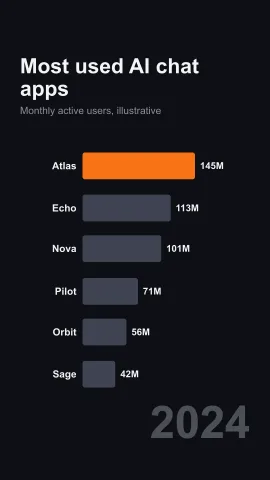
Paste your numbers into the brief, for example your follower count, revenue or downloads, and Write with AI fills the headline, the stats, the units, the labels and an accent color for free. It is instructed to use only the numbers your brief states and never to invent statistics. When your brief holds fewer numbers, it makes fewer stats instead of filling the gaps with made-up figures. It also keeps values compact, so 2,400,000 becomes 2.4 with the suffix M, which fits the frame better. Check every value against your source before you render. For a comparison of several values side by side, the animated bar chart video template fits better.
Theme, Photo and a Free Frame Check for Your Animated Counter Video
Pick a dark or light theme and one accent color for the numbers. You can also add one backdrop photo, such as a team shot, your product or an event stage, and a shade keeps the numbers readable on top of it. JPG, PNG and WebP files up to 10 MB work, from your uploads or from images you made with the AI image generator. Then run the free AI frame check. It renders three stills of the clip and shortens a headline, label or source line that would be cut off. Because the animation is a pure function of time, the stills match the final MP4 frame for frame, so the video you pay for looks like the preview.
How to Make an Animated Counter Video in 3 Steps
- 1
Choose a frame and an optional photo
Select 9:16 for Shorts, Reels and TikTok, 16:9 for YouTube and slides, or 1:1 for square feeds. Add a backdrop photo or leave it out for a clean background. You can switch frames later without losing your numbers. Sign in first, because writing with AI and rendering both need a free account.
- 2
Add your numbers to the animated counter video
Describe the milestone with its numbers and press Write with AI, or type the headline and stats yourself. Set a prefix or suffix for each value, then run the free frame check to preview three stills. Type the values as plain numbers, without commas, because the video adds the separators.
- 3
Render the counter video
Pick a theme and accent color, correct any value, and render the MP4 for about 10 credits. Browse the other data video templates for charts and rankings. The finished MP4 stays in your history, so you can update the numbers and render again next quarter.
What Can You Show with an Animated Counter Video?
Follower and Community Milestones
Celebrate 10k followers, 1M views or 500 members with one big number that counts up. A short animated counter video makes a thank-you post that people actually watch. Add your audience in the label, such as followers on all platforms. Post it on the day you cross the line, while the moment still feels new.
Company and Product Results
Show revenue, customers, downloads or uptime in one clip for an investor update, a launch post or an all-hands meeting. Up to four stats fit in one video. Name the source of the numbers, such as your annual report, in the source line. Follow it with a product promo video that turns the numbers into a reason to buy.
Fundraisers and Nonprofits
Count up the money raised, the meals served or the trees planted in an animated counter video, and thank the people who made it happen. A prefix such as $ and a suffix such as + make the numbers clear at a glance. A photo from the event as the backdrop makes the clip feel personal.
Event and Campaign Recaps
Close a conference, a sale or a campaign with the numbers that matter: attendees, sessions, orders or sign-ups. For a longer recap with many cards, use the year in review video template. Keep each label short so it stays on one line in the vertical frame, and render a wide version for the closing slide of the event.
Related video templates
All templates


Animated Counter Video FAQ
Make Your Animated Counter Video
Type one to four numbers, let AI write the headline and labels for free, check the frames, and render a clip where every value counts up. Explore every AI video template for more data formats.
Make a Counter Video